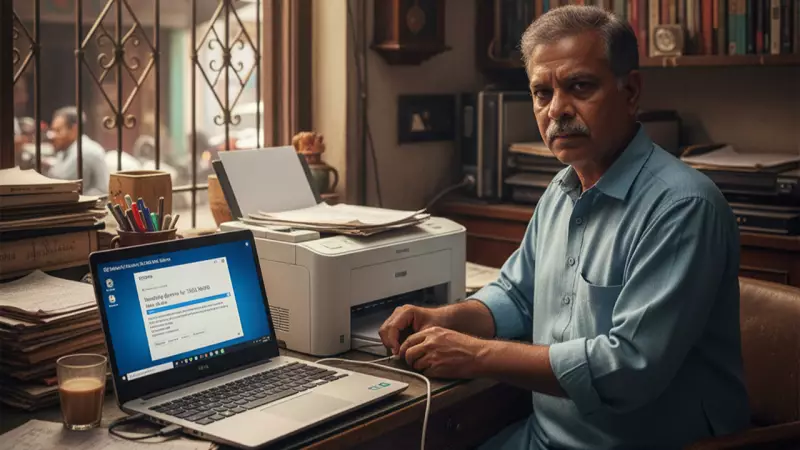
Is your Windows PC refusing to print that important document? You're not alone! Printer connectivity issues are among the most common frustrations Windows users face. But before you consider buying a new printer or calling expensive technical support, try these proven troubleshooting steps that can save you time and money.
Start With the Basics: Quick Printer Checks
Before diving into complex solutions, always begin with these fundamental checks that often resolve the issue instantly:
- Check physical connections: Ensure your printer is properly plugged into power and connected to your computer via USB cable or network
- Verify power status: Confirm the printer is turned on and not displaying any error lights
- Paper and ink inspection: Make sure there's enough paper in the tray and that ink or toner levels are adequate
- Restart everything: Turn off both your printer and computer, wait 30 seconds, then power them back on
Windows Printer Troubleshooting: Advanced Solutions
If basic checks don't resolve your printing problems, these systematic approaches typically identify and fix the underlying issue:

1. Run Windows Built-in Troubleshooter
Windows includes a dedicated printer troubleshooter that automatically detects and resolves common problems. Access it through Settings > Update & Security > Troubleshoot > Additional troubleshooters > Printer.
2. Verify Printer Status and Default Settings
Navigate to Settings > Devices > Printers & scanners. Ensure your printer shows as "Ready" and is set as the default device. If it's offline, right-click and select "See what's printing" to check for pending jobs or errors.
3. Update or Reinstall Printer Drivers
Outdated or corrupted drivers are a frequent culprit. Visit your printer manufacturer's website to download the latest Windows-compatible drivers, or use Device Manager to update drivers automatically.
4. Clear Print Spooler and Restart Service
The print spooler manages print jobs, and sometimes it gets stuck. Type "Services" in the Windows search bar, find "Print Spooler," right-click and select "Restart." This clears pending jobs and refreshes the printing process.
5. Check Printer Sharing and Network Settings
For network printers, ensure both devices are on the same network. Verify sharing settings and try disconnecting and reconnecting the printer to your network. Sometimes simply removing and re-adding the printer solves connectivity issues.
Prevent Future Printer Problems
Regular maintenance can prevent most printing issues before they start:
- Keep your printer drivers updated
- Run regular printer head cleaning cycles
- Use genuine ink cartridges to avoid compatibility issues
- Restart your printer and computer weekly to clear temporary glitches
- Install Windows updates promptly as they often include printer fixes
Following these methodical troubleshooting steps will resolve most Windows printer issues without technical assistance. Remember to work through each solution sequentially, as the simplest fixes often work wonders. Happy printing!