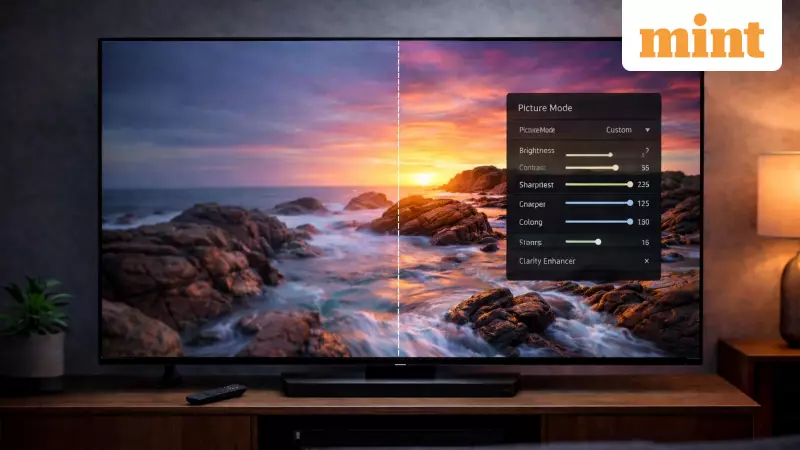
Have you ever wondered why your brand-new television looked stunning in the showroom but feels oddly artificial and tiring to watch at home? The answer lies not in the screen itself, but in a simple setting that is almost always configured incorrectly out of the box. A single adjustment can dramatically improve your viewing experience, making films, sports, and series look more natural and easier on the eyes.
Why Your TV Looks Different at Home
The vibrant, ultra-sharp image that captivated you in the store is a product of deliberate tuning. Manufacturers preset their televisions for the challenging environment of a showroom. Under bright fluorescent lights and surrounded by competing screens, TVs need to stand out. To achieve this, companies like Samsung, LG, and Sony aggressively boost brightness, sharpen edges, and apply heavy motion processing in their default modes.
This creates a 'pop' that grabs attention in a retail setting but becomes overwhelming in a typical living room. The result at home is often overprocessed images where faces look unnaturally smooth, dark scenes lose detail, and fast motion can appear jarring or overly dramatic. This leads many to question their purchase, when the real issue is simply a setting designed for a different space.

The One Simple Change You Must Make
The most effective fix is surprisingly straightforward: change your TV's picture mode. Instead of the default Standard, Vivid, or Dynamic mode, navigate to Movie, Cinema, or Filmmaker Mode. This switch doesn't magically upgrade your hardware, but it tells the TV to stop overprocessing the signal.
These alternative modes are calibrated for content creation and home viewing. They dial back the artificial sharpness, calm over-saturated colours, and prioritise accuracy over punch. For instance, Samsung's Filmmaker Mode disables unnecessary motion interpolation. LG's Cinema mode focuses on colour accuracy and shadow detail. Sony's Cinema or Custom modes emphasise natural motion. The image you see starts to resemble what the filmmakers intended, not what wins a brightness battle in a store.
Don't Forget the Motion Smoothing Setting
Once you've switched to a cinematic picture mode, there's one more crucial setting to check: motion smoothing. Known as Auto Motion Plus (Samsung), TruMotion (LG), or MotionFlow (Sony), this feature is often enabled by default. It aims to make motion look smoother by creating and inserting extra frames between the original ones.
While this can be useful for some live sports, for most films and scripted shows shot at 24 frames per second, it creates an unnatural 'soap opera effect'. This makes everything look like a cheap studio broadcast, stripping away the cinematic texture. Turning this setting off or setting it to a minimum is essential to restore the intended look and feel of movies and high-quality series, making long viewing sessions more comfortable.
Making these two adjustments—selecting Movie/Cinema mode and disabling motion smoothing—can transform your TV from a showroom spectacle into a comfortable home cinema. It reduces eye strain, restores authentic colours and contrast, and lets you enjoy content as it was meant to be seen. The next time you settle in for a movie night, take two minutes to change these settings. Your eyes, and your viewing pleasure, will thank you.