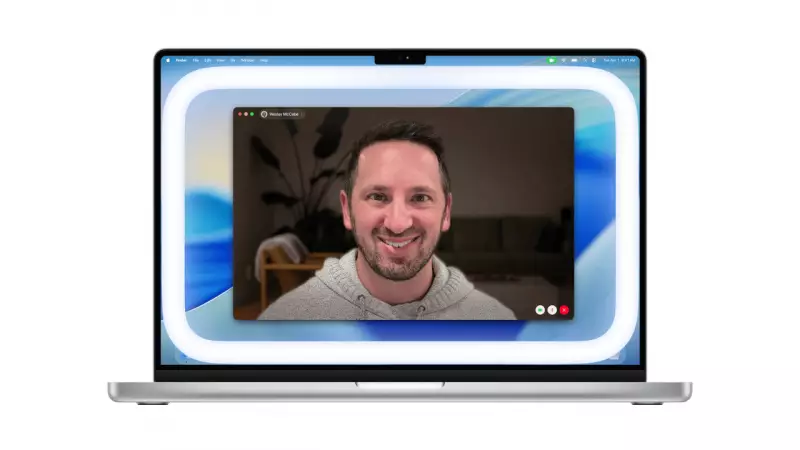
Apple has introduced a clever new feature designed to make you look your best on video calls, even in poor lighting. The tech giant has rolled out Edge Light as part of the latest macOS 26.2 update. This innovative tool essentially transforms the borders of your Mac's display into a virtual ring light, providing soft, adjustable illumination directly onto your face during calls.
How Apple's Edge Light Works and Its Smart Features
The core function of Edge Light is to create a bright, rounded rectangular glow around the edge of your screen. This acts as a fill light, counteracting shadows and improving visibility when you're in a dimly lit room. A standout intelligent feature is that the glow automatically recedes when you move your mouse pointer near the screen's edge. This ensures you never lose access to buttons, menus, or other on-screen content during an important meeting.
Apple's hardware plays a crucial role in powering this feature. The Neural Engine is tasked with detecting faces and their position within the camera frame. Simultaneously, the Image Signal Processor (ISP) analyzes the ambient light levels in your environment. This data is used to automatically adjust the brightness of the Edge Light for a natural look. For the latest Mac models released in 2024 or later, there's an added convenience: Edge Light can turn on automatically when the system detects that you're in a low-light situation.

Customization and Compatibility Details
Users are not stuck with a one-size-fits-all setting. Apple provides granular control over the visual effect. You can manually adjust both the brightness level and the color temperature of the Edge Light. The color temperature slider lets you shift the light from warmer, more yellow tones to cooler, more blue tones, allowing you to match your room's lighting or personal preference perfectly.
In terms of compatibility, Edge Light requires macOS 26.2 or later and is available for all Macs with Apple silicon. It works seamlessly with both the built-in camera on your MacBook or iMac and with external cameras connected via Apple's Continuity Camera feature. When using the built-in camera, the lighting effect appears on the Mac's own display. If you're using an external camera, the effect will show up on your primary monitor.
How to Enable and Use Edge Light on Your Mac
Activating the feature is straightforward. Follow these simple steps during any active video call:
- Look for and click the camera icon in your Mac's menu bar.
- From the dropdown menu, find and toggle the "Edge Light" option to enable it.
- For more control, click the small arrow next to the Edge Light toggle. This will reveal sliders for brightness and color temperature, letting you fine-tune the effect to your liking.
Edge Light now joins Apple's existing portfolio of built-in video enhancements for calls, which includes popular tools like Studio Light, Portrait mode, various virtual backgrounds, and Voice Isolation. This move underscores Apple's continued focus on improving the user experience for remote work and communication, making professional-grade video tools accessible to everyone with a compatible Mac.