Mastering QR Code Creation: A Simple Guide for Modern Communication
QR codes have become an integral part of daily interactions, widely utilized by businesses and individuals to share payment links, contact details, event registrations, and Wi-Fi passwords. The good news is that creating these codes requires no special software or technical expertise. Numerous platforms offer accessible tools to generate QR codes quickly and securely, enhancing convenience in digital communication.
Popular Tools for Generating QR Codes
Several trusted platforms provide user-friendly QR code generators. Here are some of the most popular options:
- Canva: This design platform includes a built-in QR code generator, allowing users to create codes within their projects.
- Adobe Express: Offers a free online QR code generator with customization features for tailored designs.
- Microsoft Edge: Enables users to generate QR codes directly from webpages, streamlining the process.
- Microsoft 365 Add-ins: Extensions for Word or PowerPoint that facilitate QR code creation within documents.
Step-by-Step Guide to Creating QR Codes
Follow these detailed steps to generate effective QR codes for various purposes.

Step 1: Identify the Purpose of the QR Code
The initial step involves determining what the QR code will link to. Common uses include directing users to websites, social media pages, online forms, PDF files, or contact information. Ensure the link or data is final and accurate before proceeding to generation to avoid errors.
Step 2: Open a Trusted QR Code Tool
Access a verified platform from its official website or app to minimize security risks. Using established tools helps ensure that QR codes function as intended and protects against potential threats.
Step 3: Enter the Link or Data
Once inside the QR code tool, paste the URL or input the required information. Many platforms allow basic design adjustments, such as changing colors and sizes. For optimal scanning, use high-contrast designs to improve readability.
Step 4: Generate and Download the QR Code
After entering the data, generate the QR code from the tool. Download it in formats like PNG or PDF. For printing purposes, high-resolution files are recommended, while PNG files are suitable for digital applications.
Step 5: Test the QR Code
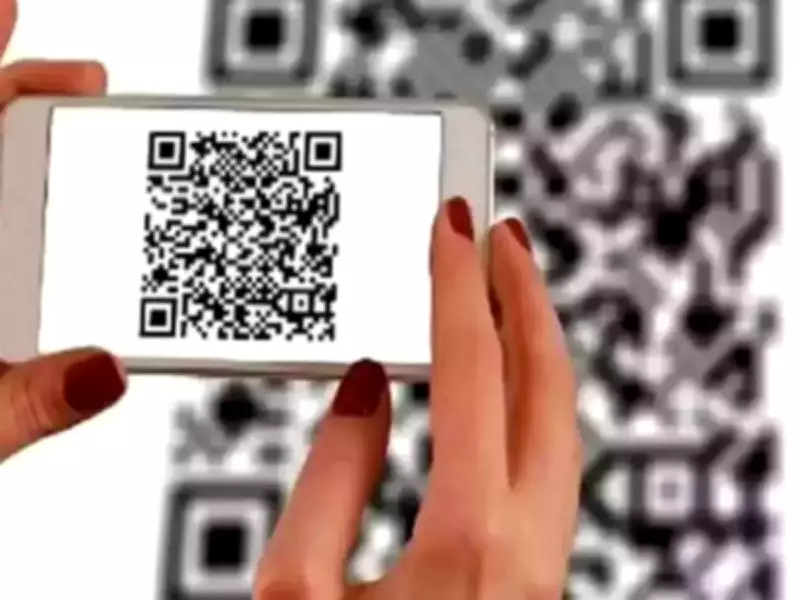
Before sharing or printing, test the QR code using a smartphone camera or a dedicated scanning app. This step verifies that the code opens the correct link and operates reliably, ensuring a smooth user experience.
By following these steps, anyone can create QR codes efficiently, leveraging tools that are both accessible and secure. This process supports smarter living by simplifying digital tasks and enhancing communication in everyday scenarios.