The Times of India Introduces 'Hack of the Day' for Everyday Problem-Solving
The Times of India has unveiled a new weekday series titled 'Hack of the Day,' designed to deliver quick and practical solutions to common daily challenges. This initiative aims to help readers save time, reduce expenses, and alleviate stress by leveraging readily available tools and features, ranging from government websites to everyday applications. In essence, it offers straightforward fixes to promote smarter and more efficient living.
Transform Your Smartphone into a Mobile Hotspot During Power Outages
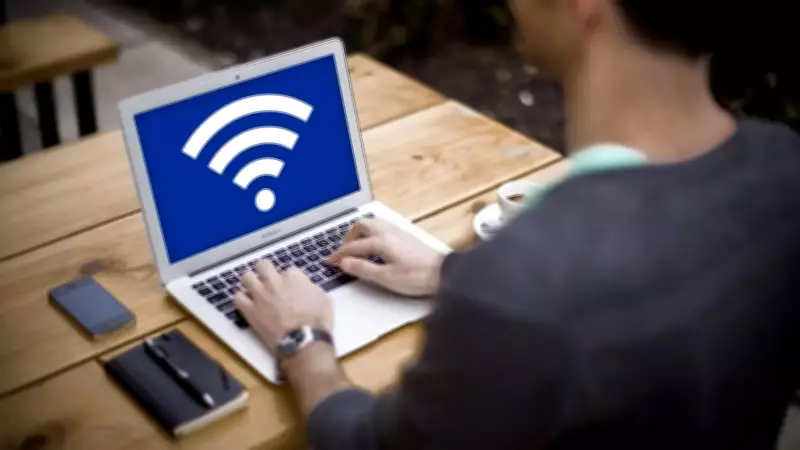
When a sudden power outage disrupts your home office, work on a laptop can grind to a halt, especially if you are waiting for a router to reboot. An effective survival strategy in such situations is to convert your smartphone into a mobile hotspot. By sharing your phone's cellular data, you can create an immediate and secure Wi-Fi connection, allowing you to continue your tasks without interruption.
This method not only benefits laptops but also enables you to provide internet access to other devices such as mobile phones, tablets, gaming consoles, or even televisions. The versatility of a mobile hotspot ensures connectivity regardless of your location, making it a valuable tool for on-the-go productivity.

Security Advantages of Using a Personal Hotspot
Opting for a mobile hotspot, whether from your own device or a trusted friend, offers enhanced security compared to public Wi-Fi networks, which are often vulnerable to cyber threats. To fully maximize the benefits of staying connected while mobile, it is crucial to understand how to properly configure your hotspot settings, with a focus on security measures.
This article provides a detailed guide on setting up a hotspot on both Android phones and iPhones, ensuring you can establish a reliable and protected network.
How to Set Up a Wi-Fi Hotspot on Android Devices
To share a mobile connection via hotspot on an Android device, follow these steps:
- Swipe down from the top of the screen and long-press the Hotspot icon to access Settings.
- If the Hotspot option is not visible, tap Edit in the bottom left corner and drag Hotspot into your Quick Settings panel.
- Customize your hotspot by changing its name and entering a secure password.
- To disable password protection, swipe down, touch and hold Hotspot, and under Security, select None.
An Android hotspot can support up to 10 connected devices simultaneously, making it ideal for sharing data with multiple gadgets.
How to Set Up a Wi-Fi Hotspot on iPhones
For iPhone users, setting up a Personal Hotspot involves these simple actions:
- Navigate to Settings and tap on Personal Hotspot.
- Alternatively, go to Mobile Service and select Personal Hotspot.
- Toggle the switch to turn on the hotspot and enable Allow Others to Join.
Steps to Join a Wi-Fi Hotspot
To connect another device to a hotspot, execute the following:
- Activate the hotspot on the source device.
- Open the Wi-Fi settings on the device you wish to connect.
- Select the hotspot name from the available network list.
- Enter the hotspot password when prompted.
- Click Connect to establish the link.
By mastering these techniques, you can ensure seamless internet access in various scenarios, enhancing both convenience and security in your digital life.